When remote students say they can’t hear the teacher, the usual fix is a microphone the teacher wears, not new software. Most studio platforms run their live classes on Zoom anyway, so a small studio usually does better renting one than paying for a custom build it will then have to support itself.
Small studios teaching online usually want three things: students who can hear the teacher, a branded place to sell recordings, and someone to call when something breaks. The first is hardware, the second you can rent, the third is people.
The sound problem is usually a microphone problem
A laptop microphone works when the teacher sits in front of it. It stops working when she walks across a big room to adjust someone’s posture. At fifteen feet her voice is quiet, the room echoes, and the software on the other end struggles to tell her apart from the background.
Browser-based video tools can make this worse. When a web page asks for the microphone, it can request three kinds of audio processing, which MDN documents as echoCancellation, noiseSuppression and autoGainControl. Noise suppression “automatically filters the audio to remove background noise.” Auto gain adjusts the input “to maintain a steady overall volume level.” A quiet, distant voice in an echoing room is the kind of signal this processing can mistake for background, so her voice fades in and out.
Ordinary users often can’t switch this off. One popular browser meeting tool exposes its echo-cancellation and auto-gain switches as settings for developers embedding it in their own software, and documents that both must stay on for its in-room noise-reduction feature to work. Zoom, by contrast, has a setting called Original sound for musicians that “disables echo cancellation and post-processing” in its desktop, mobile and web apps (per Zoom’s support article, October 2026).
Switching processing off only helps if the signal is good, so the real fix is a microphone on the teacher. Teachers who publish their home-studio setups agree: buy a wireless clip-on (lavalier) mic or headset before upgrading the camera.
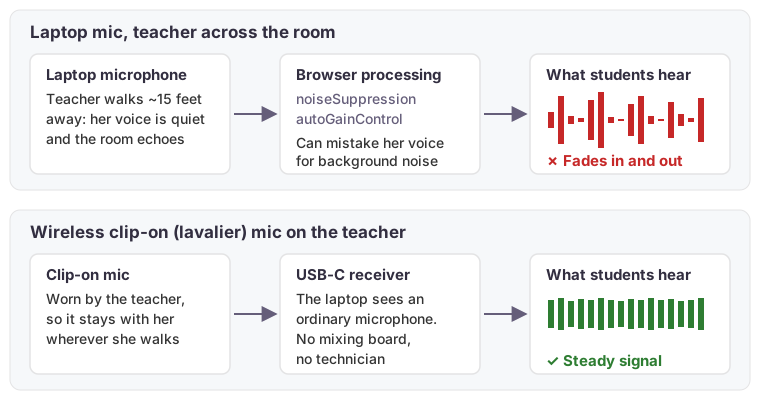 Same room, same software: the difference is where the microphone is.
Three budget tiers for teacher audio
The simplest kits plug a small USB-C receiver into the laptop, which sees it as an ordinary microphone: no mixing board, no technician. The figures below are approximate US retail prices we saw in early October 2026, several of them sale prices, so treat them as ballpark figures.
| Tier | What it includes | Approx. retail, Oct. 2026 |
|---|---|---|
| Budget | A USB wireless headset or a compact clip-on mic kit, plus a small wired speaker so the teacher can hear students at check-in | $70–$115 |
| Solid | A dual-channel wireless clip-on kit, the speaker, and a better webcam | $360–$420 |
| Best | A sweat-rated fitness headset, a small audio interface and cable, a camera that turns to follow the teacher, and the speaker | $885–$940 |
A few practical notes:
- Skip Bluetooth earbuds. Teachers report static, dropouts and earbuds falling out mid-class, and Bluetooth speakers add enough delay to cause echo.
- Clip-on or headset? A clip-on mic suits most classes. Choose a headset for hot or high-sweat classes, or for loose tops that rustle.
- Teach from a laptop rather than a tablet if you can. External mics are more predictable on a Mac or Windows laptop.
- Do the one-time settings once. Turn off automatic microphone volume in the meeting app, turn on its original-sound option if it has one, and turn off the laptop’s own “audio enhancements.” Then have someone listen remotely while the teacher walks the room.
Most studio platforms run on Zoom underneath
Of the 13 studio-management platforms we compared in October 2026, 8 run the live class on Zoom (one also supports Microsoft Teams) and handle the booking, payment and link around it. WellnessLiving says outright that its live product “is powered by Zoom.” Punchpass sends the Zoom link when a student books, emails a reminder before class, and notes students “will not need a Zoom account.” Momence and Arketa connect to the studio’s Zoom account too. Even the “Netflix-style” video-membership sites, such as Uscreen, send members to a gated Zoom link for classes where the teacher needs to see students.
The few that don’t use Zoom tend to have a catch. One requires each student to create an account and install its app on an iPhone or iPad. Others offer only a one-way broadcast, where students can see the teacher but the teacher can’t see them.
So for most studios, “leaving Zoom” really means shrinking it to one well-protected teacher account that students never sign into. Everything the students touch, and the support line you call, moves to a platform built for studios.
These platforms also change how you check who has paid. Instead of a teacher admitting people one at a time from a waiting room, the platform sends the class link only to people who booked, and booking uses up a membership or class credit. The booking list is the paid list. As Arketa’s own guidance puts it, a Zoom waiting room “will require you to manually let in your students.” You can leave the waiting room on as a backstop, but the teacher stops being the bouncer.
A custom build makes you your own help desk
Building your own platform is possible, but video services sell only the call window. Someone still has to build and maintain student sign-in, memberships and single-video purchases, the class schedule, recording and the video library, links that only work for people who paid, reminder emails and admin screens. None of the video services knows who has paid. That logic is custom work in every version of this plan.
Industry estimates give a sense of scale. One development firm’s published market-rate benchmark puts a video-conferencing app’s first version at $15,000 to $30,000 and 5 to 8 weeks, and that is before memberships, payments and a video library are added. Then it needs ongoing paid upkeep every month as the services it depends on change. These are third-party estimates, not quotes.
Upkeep is the bigger cost. When a student’s video won’t play five minutes before class, they call whoever built the system: a support team on a rented platform, you on a custom build. Older students on tablets hit the most browser quirks, so the people who need the most help land on the least-supported setup.
A custom build makes sense when the platform is itself the business, for example if you plan to sell it to other studios. For a single location, the branding a platform gives you, your logo and colors on its pages, is usually enough to start with.
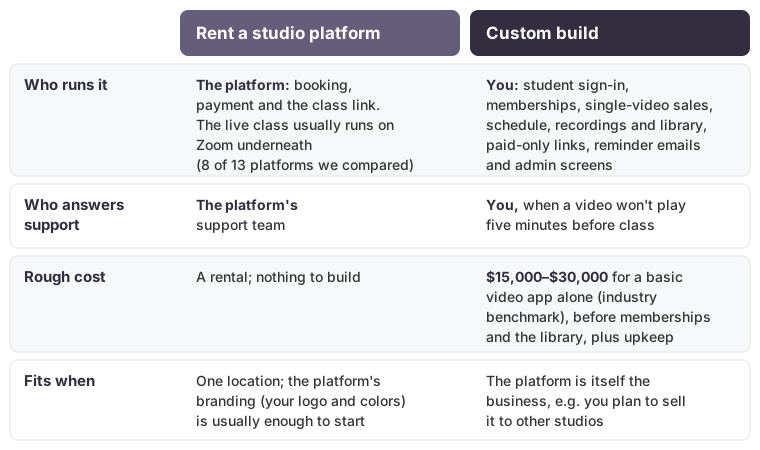 Cost figure is a third-party industry benchmark, not a quote.
Design for older students
What helps older remote students is mostly about organization:
- One stable link. Pick one place the link always lives, such as a bookmarked “My Reservations” page, and don’t change it.
- No account to create. Accounts, apps, passwords and two-step codes are where people get stuck.
- A human to call. A phone number answered in the half hour before class does more than any feature. Zoom can also let people join by phone, depending on plan and settings, which a custom platform usually doesn’t.
- A printed one-page guide and a test call before each new student’s first class.
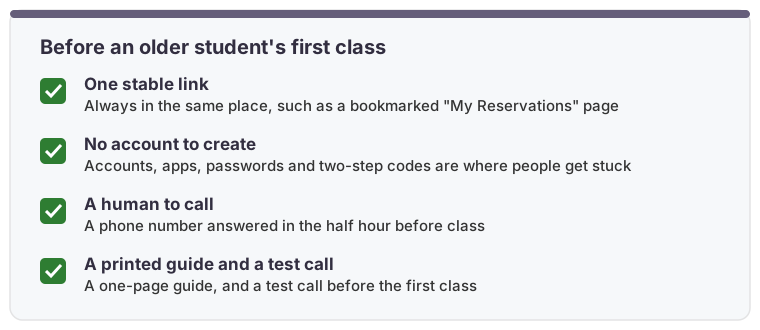
Every platform change is a new learning curve, so choose once.
How we can help
We help small businesses make practical technology decisions: we pick the hardware, set up and secure the accounts, compare the rental platforms against what you actually need, and tell you plainly when a custom build isn’t worth it. If you’re weighing a similar decision, get in touch.