Someone takes over one of your business accounts: the company’s social media page, the online store, the accounting software, the video-meeting account. You reset the password, maybe every password you can think of, and things are quiet for a day. Then the attacker is back. This is a common pattern in small businesses, and it rarely means the new passwords were weak. It usually means the attacker kept a way in that a password change doesn’t close, and the cleanup happened in the wrong order.
A password is only one of several ways into an account. Below are four common ones, and then the order that closes them.
Email is the master key
Almost every online account has a “forgot password” link, and that link sends a reset message to your email. Whoever can read your email can reset your booking system, your social media, your video-meeting account and often your bank’s online login. So attackers who get into a mailbox set it up to keep reading it, even after you change the password:
- Forwarding. A setting that quietly sends a copy of every incoming message to an outside address.
- Inbox rules (Gmail calls them filters). Rules that move or delete messages automatically. An attacker can make one that deletes “security alert” and “password reset” emails before you see them. Microsoft lists rules that forward mail to unknown addresses, or move it to rarely opened folders such as Junk Email or RSS Subscriptions, as signs of a compromised Microsoft 365 mailbox.
- Recovery details. A recovery phone number or backup email address they control, so they can reset your email password.
- App passwords. Special passwords for older mail programs. In Microsoft 365, app passwords aren’t revoked when you reset the account password; you have to delete them. Google revokes them when you change your Google Account password.
- Connected apps. Third-party apps the attacker granted access to your account (“Sign in with Google”, “Allow this app to read your mail”). These keep their access until you remove them.
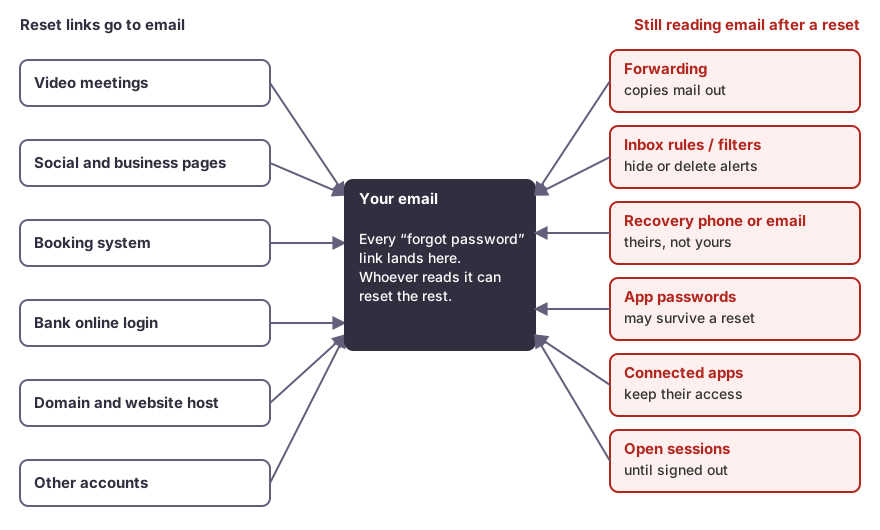 If an attacker can still read your email, every other password you change can be reset again.
Being signed in is not the same as knowing the password
When you sign in to a website, it gives your browser a token, a bit like a wristband at an event, so it doesn’t have to ask for your password on every page. Some malware, often called an infostealer, copies these tokens and the passwords saved in your browser and sends them to an attacker. Microsoft’s security team notes that with a stolen session cookie the attacker doesn’t need your password, and the token can get past two-factor checks because you already completed them. It also says session tokens have to be revoked in addition to resetting the password.
Two things follow:
- Changing a password doesn’t always end existing sessions. You need to use the “sign out everywhere” option as well.
- If the computer is still infected, your new passwords get stolen too. You type them on the same machine the malware is watching.
The attacker added their own way back in
Besides your password, accounts have other ways to prove who you are, and attackers add their own:
- A second two-factor method, such as their phone number or their authenticator app, alongside yours.
- A trusted device, so their laptop is never asked for a code.
- Another admin or user on a business account. On a Facebook Page or Meta business portfolio, an attacker who adds themselves as an admin keeps control after your personal password changes. Meta’s guidance is to review the Page and business portfolio and undo any changes you don’t recognize.
- Connected apps and integrations on the platform itself, such as a scheduling or posting tool given access to your page.
One password, several doors
If the same password was used on more than one account, an attacker who has it can try it everywhere. Resetting the account that was attacked leaves the others open. Google’s hacked-account guidance says to change the password on any site where you reused it.
Clean up in this order
Order matters because each step protects the ones after it. Changing the booking system’s password first does nothing if the attacker can still reset it through your email.
Two things come before the order:
- If money has moved or is about to, call your bank now, using the number on your card or statement. Stopping or recalling a transfer depends on speed, so don’t wait until the accounts are clean.
- Keep evidence before you delete it. Screenshot forwarding addresses, rules, unfamiliar sessions and devices, added admins, and any suspicious emails or payment changes, with dates. Your bank, an insurer and an IC3 report may all ask for them. If you have cyber insurance, call the insurer early: some policies require notice before you bring in outside help, and they may want an infected computer examined before it is wiped.
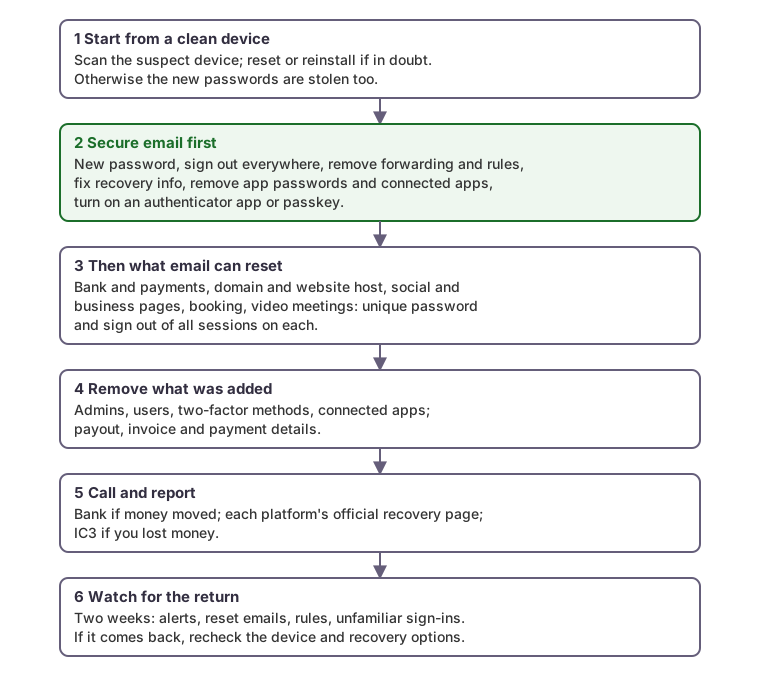
1. Start from a clean device
Do the cleanup from a computer or phone you have good reason to trust, not the one that might be infected. Then deal with the suspect device. Run a full scan with up-to-date security software. If it finds password-stealing malware, or the trouble started after someone installed a “free” download, a cracked program or a browser extension, or you simply can’t be sure, back up your documents (not programs) and reset or reinstall the operating system. If an insurer or investigator may want to look at the device, set it aside and use another one until they say otherwise. A reset is slower than a scan, but a scan that misses something means doing all of this again.
2. Secure email
On the email account, from the clean device:
- Change the password to a new one you haven’t used anywhere.
- Sign out everywhere. Google: review and sign out of devices under Security & sign-in, “Your devices”. A Google Workspace admin can also reset a user’s sign-in cookies. Personal Microsoft accounts: Sign out everywhere under Advanced security options, which can take up to 24 hours. Microsoft 365 work accounts: an admin revokes sessions, as in Microsoft’s compromised-mailbox steps.
- Remove forwarding and rules you didn’t create. In Gmail, check the Forwarding setting and your filters; see Google’s checklist. In Outlook, look under Settings, Mail, Rules and Forwarding (Microsoft’s rules help). Some Microsoft 365 rules can be hidden from the user; an admin can list them.
- Check recovery phone and email, and remove any two-factor method or device you don’t recognize.
- Remove app passwords and connected apps you don’t recognize or don’t use.
- Turn on two-factor sign-in with an authenticator app or a passkey, rather than text-message codes where you have the choice.
3. Then every account email can reset
Go through the other accounts in order of what they control: the bank and payment processors first, then your domain registrar and website host (they control your email’s domain), then social media and business pages, then booking, video-meeting and other tools. For each: new unique password, sign out of all sessions, check recovery details and two-factor methods. Zoom, for example, has Sign me out of all sessions on the Profile page; Facebook lists sessions under Where you’re logged in. A password manager makes unique passwords practical.
4. Look for what was added
On every business account, review the list of admins and users, connected apps, two-factor methods, and anything to do with money: payout bank accounts, invoice details, saved cards, ad spend. Remove anyone and anything you can’t account for. In a Meta business portfolio, only people with full control can remove others, so make sure you still have it.
5. Call and report
- Call your bank, if you haven’t already, using the number on your card or statement if money moved, payment or payout details changed, or the bank login was involved. Ask about stopping or reversing transfers.
- Report to each platform through its official hacked-account page, such as Facebook’s or the Page recovery form. Use only links you reach from the platform’s own site; fake “recovery” services target people in exactly this situation.
- If you lost money, file a report with the FBI’s Internet Crime Complaint Center (IC3). IC3 is the FBI’s intake point for online fraud. It never contacts people asking for money or offering to recover funds.
6. Watch for the return
For the next couple of weeks, watch for new security alerts, password-reset emails you didn’t request, rules or forwarding reappearing, and unfamiliar sign-ins in each account’s activity list. If something comes back, a step above was missed, most often the device or a recovery option.
Checklist
- If money moved, call the bank first. Screenshot what the attacker changed before you remove it.
- Work from a clean device; scan, and reset if in doubt.
- Email first: new password, sign out everywhere, remove forwarding and rules, fix recovery info, remove app passwords and connected apps, turn on an authenticator app or passkey.
- Then the bank, domain, social and business pages, and the rest, each with a unique password and a sign-out of all sessions.
- Remove admins, users, two-factor methods and apps you can’t account for; check payout and payment details.
- Call the bank if money is involved; report to the platform; file with IC3 for losses.
- Watch for two weeks.
How we can help
If an account keeps coming back under someone else’s control, or you want your email, admin access and two-factor set up so it doesn’t happen again, see our Cloud Security & Compliance services.